Google Business Profile ID: Find Yours in 60 Seconds
By Toy Wen Da, Co-Founder · Updated · 5 min read · scored 95/100
Your Google Business Profile ID is the unique code Google assigns to your listing. It differs from your website URL and from a Place ID. The fastest way to find it is to open your profile in Google Maps, tap Share, and pull the long string out of the link Google gives you.
How to find your Business Profile ID
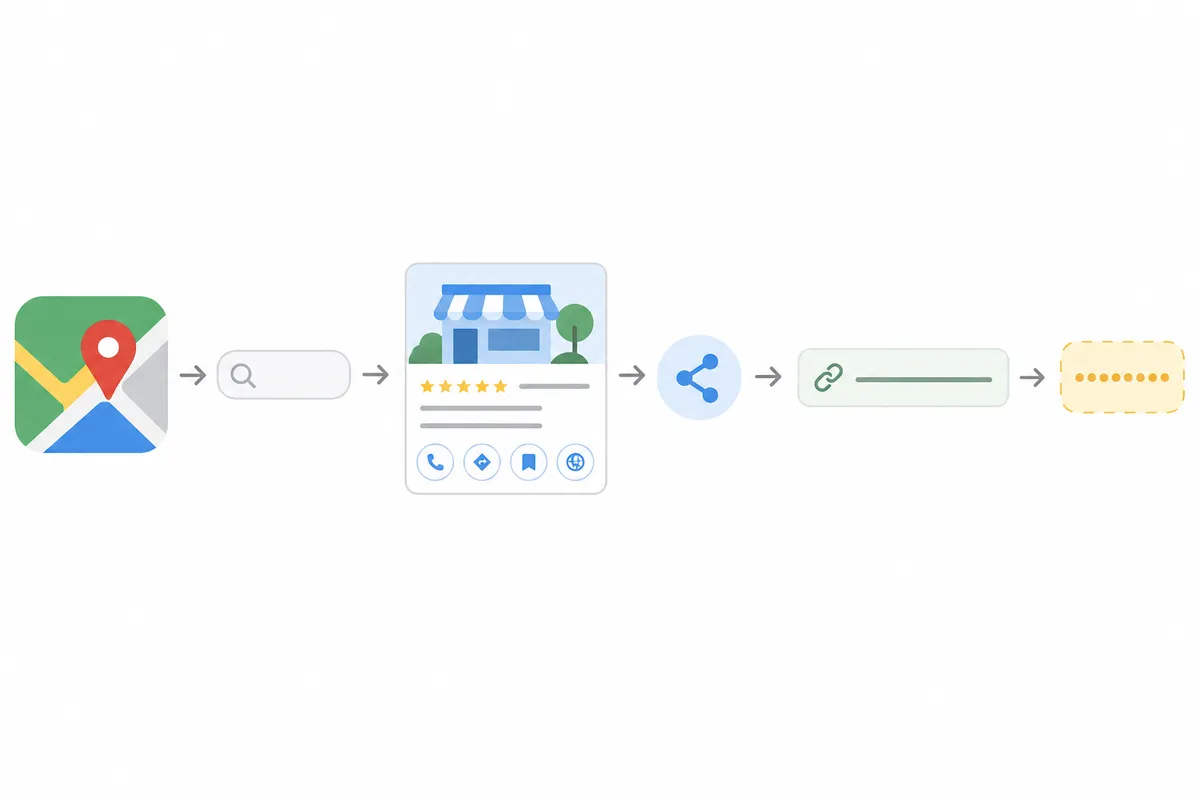
Using Google Maps (the fastest way)
- Open Google Maps on desktop or the mobile app.
- Search for your business name and city.
- Select your listing from the results.
- Tap or click Share.
- Copy the link Maps generates. The long alphanumeric string after
cid=in that URL is your profile's identifying code.
This works whether or not you manage the listing, because it reads public listing data rather than anything tied to your account.
Using Business Profile Manager
If you're signed in as the owner or manager, go to business.google.com and select your location from the dashboard. The same Share option appears in the profile view and produces the identical link. This route helps when you manage several listings under one account and need to confirm you're pulling the ID for the right branch and not a duplicate.
Using a Place ID lookup tool
Google also publishes a standalone Place ID finder, where you can search your business name and get a separate identifier used by its mapping APIs. It isn't the same code as the one in your Maps share link, which trips people up constantly (more on that below).
A quick reference table
| ID Type | What It's For | Where to Find It | Typical Format |
|---|---|---|---|
| Business Profile ID (CID) | Identifies your listing itself | Share link inside Google Maps | Long numeric string after cid= |
| Place ID | Used by Google Maps Platform APIs and some third-party tools | Google's Place ID finder tool | Starts with ChIJ |
| Location ID | Used internally for bulk management of multiple listings | Business Profile Manager export file | Alphanumeric string tied to each row |
Google's own help documentation for adding or claiming a profile confirms that Maps and Business Profile Manager are the two official routes, and there is no separate "ID lookup" screen buried in settings.
When Google's own tools are enough
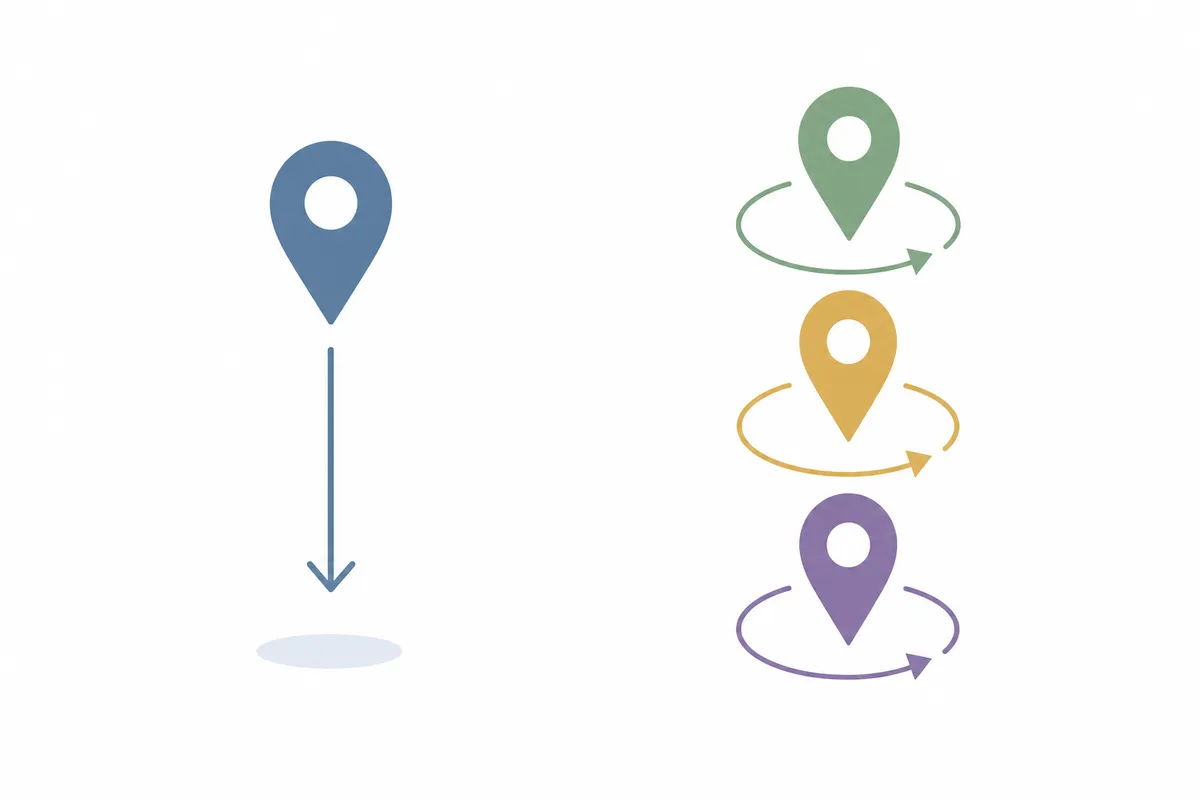
For a single listing and a one-off need, such as pasting your ID into a review widget or verifying you're editing the right location, the Maps share link is all you need. It costs nothing, takes under a minute and requires no login.
Scale is where it gets tedious. If you manage several listings, say three urgent care clinics across Phoenix, pulling each ID with its own Maps search becomes a recurring chore every time a listing is re-verified or merged with a duplicate, and it's also when a wrong ID is most likely to land in the wrong tool and quietly break a reviews widget or an analytics connection.
The ID itself has no bearing on whether customers can find you. A correct ID attached to a half-finished profile with missing categories, no photos and stale hours still won't rank. The local SEO fixes that actually move visibility happen inside the profile's content.
Common mistakes to avoid
- Grabbing the Place ID instead of the profile ID. They look similar but serve different systems: one is for Maps-based APIs and the other identifies the listing itself.
- Using a stale ID after a merge. If Google merges your listing with a duplicate or you re-verify ownership, the old ID can stop resolving correctly.
- Treating the ID as an SEO fix. Locating the ID solves a technical lookup problem and does nothing for review volume, category accuracy or the profile completeness that practices in competitive fields rely on to rank. See how doctors use specific Google Business Profile changes to bring in patients.
- Sharing the wrong link entirely. Copying your website URL instead of the Maps share link is a common mix-up when a tool asks for a "profile ID" without explaining which format it wants.
FAQs
What's the difference between a Google Business Profile ID and a Place ID?
The profile ID (sometimes shown as a CID) identifies your Business Profile listing directly and comes from the Maps share link. A Place ID is a separate identifier used by Google's mapping and places APIs, usually starting with "ChIJ." Tools built for developers almost always want the Place ID.
Can I change my Business Profile ID?
No. It's generated automatically when your profile is created and stays tied to that listing. You'd only see a new one if Google creates a fresh profile, for example after a duplicate listing is resolved.
Why would I need this ID at all?
Most owners need it to connect third-party review widgets, to verify which listing they're editing when managing multiple locations, or to troubleshoot an ownership or duplicate-listing issue with Google support.
Where do I find my Business Profile ID on mobile?
Open the Google Maps app, search for your business, open the listing and tap Share. The link that appears contains the same ID you'd get on desktop.
Does my Business Profile ID affect my local search ranking?
No. The ID is purely a technical identifier. Ranking depends on profile completeness, review volume and recency, category accuracy and consistency with your website, and has nothing to do with which code Google assigned behind the scenes.
Next: fix what's attached to the ID
Finding your Google Business Profile ID takes one Maps search and a copied link. The harder work is making sure the profile behind it is complete enough to rank. Pull a free look at where your listing and site stand today, then talk to the team about closing the gaps a quick ID lookup won't fix.
Resources / References
Sources
About the author
SearchBlueprint researched, wrote and scored this article with the content pipeline our customers run on their own sites. The score in the byline is what our content engine gave this page before it published. Nothing here is reviewed by hand, which is the point: it is the product's output, published where anyone can check it.