Google Search Console Verification: A Step-by-Step Fix
By Toy Wen Da, Co-Founder · Updated · 7 min read · scored 99/100
Google Search Console verification means proving to Google that you own or control a site, and once you do, Google shares its private search data with you. The fastest fix is to pick one method (HTML tag, file upload, DNS record, Google Analytics or Google Tag Manager) and finish it before trying another.
Once you're verified, SearchBlueprint's site traffic feature pulls your Search Console clicks, impressions and queries together with Google Analytics and AI-crawler visits. You get the real traffic picture as soon as verification clears, not just a green checkmark with no context.
How to verify your site in Google Search Console
Step 1: Add the property
In Search Console, click Add property and choose between two property types:
- A Domain property covers
http,https,wwwand all subdomains, but requires a DNS TXT record added at your domain registrar. - A URL-prefix property covers one exact URL (like
https://yoursite.com/) and unlocks four extra verification methods beyond DNS.
If you don't manage your own DNS, start with URL-prefix.
Step 2: Choose a verification method
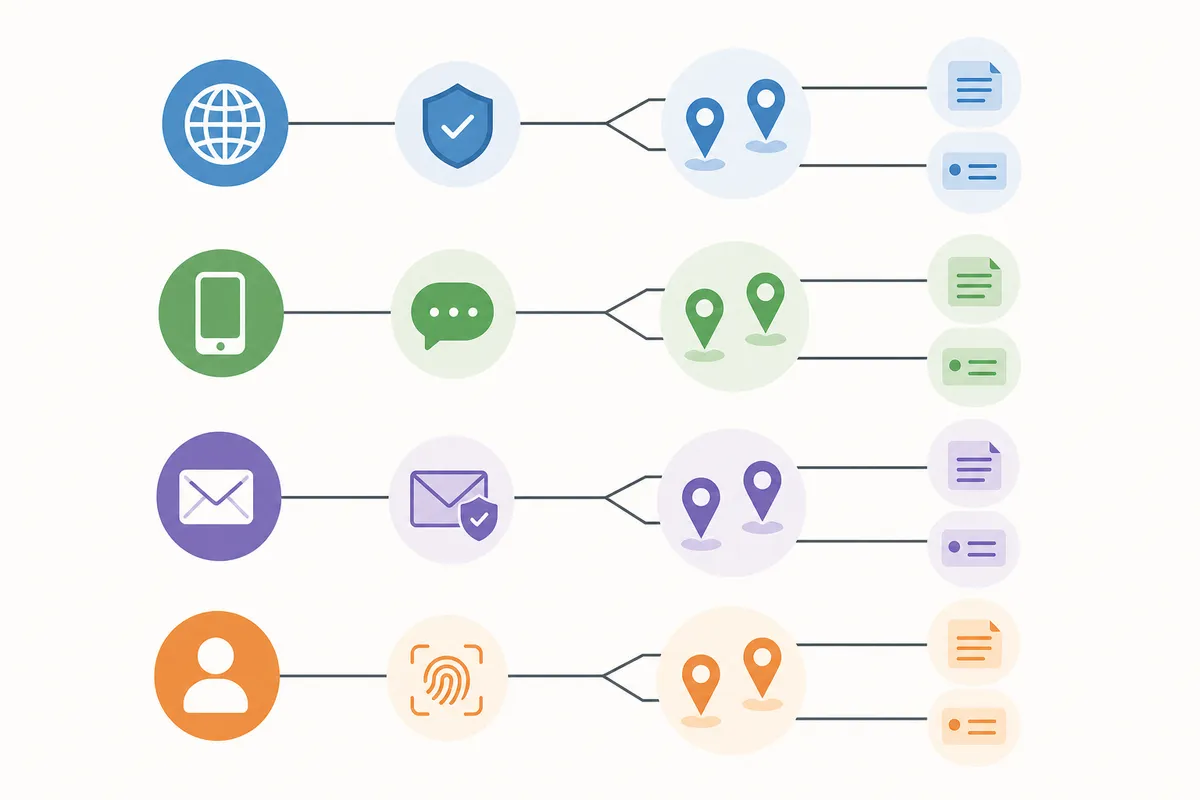
On the "Verify ownership" screen, Search Console lists several options under Other verification methods:
- HTML tag: paste a meta tag into your site's
<head>. - HTML file upload: upload a file to your site's root folder.
- DNS record: add a TXT record at your domain host.
- Google Analytics: works if the Analytics tracking code is already on your homepage.
- Google Tag Manager: works if an active GTM container is already firing.
Step 3: Click verify
After the tag, file or record is in place, go back to Search Console and click Verify. The HTML tag and Analytics methods are usually near-instant, but DNS changes can take longer to propagate because they depend on your registrar.
Google Search Console verification by platform
| Platform | Recommended Method | Where You Paste It | Note |
|---|---|---|---|
| WordPress (Rank Math, Yoast, or SEOPress) | HTML tag | SEO plugin's Webmaster Tools / Google field | Plugin auto-strips the tag down to just the code |
| Squarespace | HTML tag or Google Analytics | Settings → Advanced → Code Injection (header) | Removing the tag later breaks verification |
| Wix | HTML tag | SEO settings → Custom meta tags | Verify after publishing, not on a draft |
| Shopify | HTML tag or Google Analytics | Theme code → theme.liquid head, or Analytics settings |
Theme updates can wipe custom tags, check after any theme change |
| Site builders on custom DNS (e.g., Netlify, GitHub Pages) | DNS TXT record | DNS host's record manager, not the hosting platform | You edit records at your DNS provider, even if the site is hosted elsewhere |
| Google Sites | Automatic ownership | N/A | Verification is often handled through the Google account that created the site |
A site owner's forum post on Netlify's support board shows the last pattern well. They had a custom domain at one registrar and had pointed the nameservers to Netlify, so the TXT record had to go into Netlify's DNS panel rather than the registrar's, because that was where the domain's DNS was managed.
Adding users to Google Search Console
Verifying makes you the first Owner, but most sites need more than one person with access, such as a marketer, an agency or a developer. Add them under Settings → Users and permissions → Add user. Every user you add needs a Google account, either a Gmail address or a Google Workspace email, because Search Console can't share access with any other kind.
| Role | Can Do | Can't Do | Best For |
|---|---|---|---|
| Owner | See all data, add/remove users, manage verification | N/A | The account that verified the property, plus a backup admin |
| Full | See all data, submit sitemaps, request indexing | Add or remove other users | Agencies, in-house marketers, developers who need daily access |
| Restricted | View most reports | Submit sitemaps, see some settings | Clients or stakeholders who just need visibility |
Common verification errors and fixes
| Status / Message | Likely Cause | Fix |
|---|---|---|
| "Ownership verification failed" | Tag or file was removed, or never saved | Re-add the tag/file and confirm it's live before clicking Verify again |
| "We couldn't find your verification record" (DNS) | TXT record not propagated yet, or added at the wrong DNS host | Wait and recheck; confirm you're editing the DNS host actually controlling the domain |
| "HTML tag not found" | Caching plugin or CDN is serving an old page | Clear cache, then view page source to confirm the tag is in the live <head> |
| Verified, then suddenly unverified | The verification tag or file was deleted during a theme/template update | Re-add the tag and consider a second backup verification method |
When Search Console's own tools are enough, and when they're not
For a single property that one person checks occasionally, the built-in verification methods are all you need. They're free, and a correctly placed HTML tag or DNS record rarely needs touching again.
Search Console starts to feel thin once you manage several properties or rotate team members, or when a verification keeps breaking after every deploy and you end up doing manual checks across multiple logins instead of looking at one view of what's happening. That is a recurring-maintenance problem rather than a one-off fix, and pairing Search Console with a tool that already pulls its data into one dashboard saves real time.
Common mistakes
- Using two verification methods at once and only finishing one. Pick one, finish it, then add a backup method later if you want redundancy.
- Editing DNS at the wrong provider. If you moved nameservers to your host, the registrar's DNS panel is no longer the one Google checks.
- Removing the HTML tag after a redesign. Theme and template changes often wipe custom head code, so check after every major site update.
- Adding team members by personal, non-Google email. Search Console access only works with Google accounts.
- Verifying the wrong URL variant.
https://site.comandhttps://www.site.comare different URL-prefix properties, and verifying one doesn't verify the other.
FAQs
Why does my Google Search Console verification keep failing?
The most common reason is that the tag, file or DNS record isn't live on the page Google is checking. Caching plugins, CDNs and theme updates can strip or delay it, so view your page source directly before retrying.
How do I add a user to Google Search Console?
Go to Settings → Users and permissions → Add user, enter their Google account email and choose Full or Restricted access. Only an Owner can complete this step.
Can I verify a Squarespace or Wix site without DNS access?
Yes. Both platforms let you add the HTML tag in their site settings, so you don't need to touch domain DNS records.
What's the difference between a Domain property and a URL-prefix property?
A Domain property covers every subdomain and protocol variant through one DNS record. A URL-prefix property covers one exact URL but supports four additional verification methods besides DNS.
Does verifying Google Search Console affect my rankings?
No. Verification only confirms ownership so Google will show you data, and it has no direct effect on how your pages rank.
Get your data flowing the moment you're verified
Once verification goes through, the next move is making sure Google can crawl what you've built, and our guide on how to add a sitemap to Google Search Console walks through that step. After that, the Links report is worth checking regularly, and how to find backlinks in Google Search Console step by step shows exactly where to look. According to Google Search Central, Search Console data is only shared with verified owners and the users they add, which is why this one step has to come first.
Verification and sitemaps only get you the raw data. Seeing what's working means pulling Search Console together with your other traffic sources, which is what SearchBlueprint's site traffic view does. Talk to the team and see a sample SEO report built from that data.
Resources / References
Sources
About the author
SearchBlueprint researched, wrote and scored this article with the content pipeline our customers run on their own sites. The score in the byline is what our content engine gave this page before it published. Nothing here is reviewed by hand, which is the point: it is the product's output, published where anyone can check it.