How to Check Backlinks in Google Analytics (And What It Misses)
By Toy Wen Da, Co-Founder · Updated · 15 min read · scored 98/100
The fastest way to learn how to check backlinks in Google Analytics is to open Reports, then Acquisition, then Traffic acquisition, switch the dimension to Session source / medium, and search the table for "referral." That shows which sites send you click-through traffic. It is not a full backlink list, and Search Console fills that gap.

Can Google Analytics show your backlinks?
Only the ones somebody clicked. A backlink is a link from another site pointing to yours. GA4 can only log a visit from one when the visitor actually follows it, your Google tag loads on the page they land on, and their browser forwards the referring domain.
That means GA4 answers "which links send me visitors," not "which links exist." If you want the full definition before going further, read backlinks for SEO: what they are and how to earn the right ones.
Each version of the question has a different free tool behind it:
| Question | Best free tool | What you'll see | Cost |
|---|---|---|---|
| Which sites link to me? | Google Search Console, Links report | Top linking sites, top linked pages, anchor text | Free for verified sites |
| Which links actually bring visitors? | GA4, Traffic acquisition | Sessions, engagement rate, landing page | Free |
| Which linked visitors convert? | GA4, with key events set up | Conversions tied to the referring domain | Free |
| Who links to my competitor? | Bing Webmaster Tools | Backlinks for any domain, no verification needed | Free account |
| Is a link nofollow or sponsored? | The linking page's HTML | Link attributes GA4 and GSC never show | Free, manual |

How to check backlinks in Google Analytics 4, step by step
The Traffic acquisition report measures which sources start sessions. Here's how to turn it into a usable backlink report.
Open the Traffic acquisition report
In GA4, go to Reports, then Acquisition, then Traffic acquisition. If the report is missing from your menu, an editor on the account can re-add it under library settings.
Pick a 90-day window or longer
Use the last 90 days or more. Referral traffic is spiky. One mention in a roundup or newsletter can send a short burst of visits, then nothing for weeks. A 7-day or 30-day window will understate your actual link profile.
Switch the dimension to Session source / medium
The table opens on Session default channel group, which lumps referral traffic into a broad bucket. Click that column heading and change the primary dimension to Session source / medium to see each domain by name.
Filter the table down to referral traffic
Type "referral" into the search box above the table. For a cleaner cut, add a filter where Session default channel group exactly matches Referral.
Add engagement metrics before you judge quality
Don't sort by sessions alone. Add Engaged sessions, Engagement rate, and Key events as columns. GA4 counts a session as engaged when it lasts 10 seconds or more, includes a key event, or racks up two or more page views.
Add the landing page to see which content earned the link
Click the plus icon next to the dimension picker and add Landing page + query string as a secondary dimension. Now each row pairs a referring domain with the page it sent people to.
| Referral source | Landing page | What it likely means | What to do next |
|---|---|---|---|
| industryblog.com / referral | /blog/seo-checklist | An editorial link is sending engaged readers | Update the page, pitch the same site again |
| directory-site.com / referral | / (homepage) | A listing points at your homepage, not a relevant page | Ask for a deeper link to the specific service page |
| checkout.stripe.com / referral | / (any page) | Visitors returning from a payment flow, not a real backlink | Add the domain to unwanted referrals |
| unknown-domain.xyz / referral | / | 100% bounce rate, near-zero engagement | Treat as spam, exclude from analysis |
A reminder worth repeating: referral is one channel among several. Expect it to be a smaller slice than organic search or direct traffic, and read it alongside organic traffic: how to measure it and grow it in 5 steps rather than on its own.
Find the exact page that linked to you (the Page referrer report)
Traffic acquisition only shows domains. To see the actual URL that linked to you, build a free-form exploration using the Page referrer dimension.
Go to Explore, then Free form. Add Page referrer, Landing page + query string, and Event name as dimensions, with Sessions or Views as the metric. Filter Event name to exactly match page_view, filter Page referrer to exclude your own domain, and filter out rows where Page referrer exactly equals "(not set)".
Expect many rows to show only https://example.com/ instead of the full article URL. That's not a bug. Most browsers now default to the strict-origin-when-cross-origin referrer policy, which sends only the domain, not the path, when someone moves between two different HTTPS sites, a behavior the W3C's Referrer Policy specification sets as the browser default for exactly this cross-origin case. GA4 also caps the page_referrer value at 420 characters, so an unusually long URL gets cut off before it reaches your report.
How to check backlinks in Google Search Console
Search Console's Links report is the closest thing Google offers to a free backlink checker, and it covers any property you've verified.
Open the Links report
In Search Console, select your property and click Links in the left-hand menu.
Read Top linked pages and Top linking sites
Under External links, open Top linked pages to see which of your URLs attract the most links. Open Top linking sites to see which root domains send you the most links, then click any domain to see exactly which pages it links to.
Check Top linking text for anchor patterns
This shows the words other sites use when they link to you. Case-insensitive duplicates get merged into one row. Editorial.Link, a link-building provider, surveyed 518 SEO professionals and found that 41.7% of them prefer partial-match anchor text over exact-match, which is worth keeping in mind when you judge whether your own anchor profile looks natural.
Export the link list
Click Export external links at the top of the report. You can export the newest links Google has discovered or a wider sample, up to 100,000 rows total, though any single table view caps out at 1,000 rows.
| Report view | What it shows | Export limit | Known limitation |
|---|---|---|---|
| Top linked pages | Your pages, ranked by inbound links | 1,000 rows per table | Sample only, not exhaustive |
| Top linking sites | Root domains linking to you | 1,000 rows per table | Groups by canonical URL |
| Top linking text | Anchor text used across your links | 1,000 rows per table | Case-insensitive duplicates merged |
| Export external links | A bulk export of discovered links | Up to 100,000 rows | Never shows nofollow status |
Google is explicit that this is a sample. According to Google Search Central's own documentation (https://developers.google.com/search), the Links report is not meant to be a comprehensive record of every link to your site, and it doesn't distinguish a nofollow link from one that passes full ranking signal.
Is the link: search operator still useful?

No. The old shortcut, typing link:yourdomain.com into Google, stopped being reliable years ago. Google's John Mueller advised against using it back in January 2017, and it has never recovered as a backlink check since.
What still works is finding mentions of your brand that may not be linked at all:
yourdomain.com -site:yourdomain.comfinds pages mentioning your domain, excluding your own site."Your Brand Name" -site:yourdomain.comsurfaces brand mentions with no link attached, which are easy outreach targets.competitor.com -site:competitor.comdoes the same exercise for a rival.
It's manual, and it will never be complete, but it's free, and it catches unlinked mentions no backlink tool will show you. Google has retired other once-useful search shortcuts the same way; the cache: operator went the same route, as covered in Google Search in cache is gone: how to view cached pages now.
How to check backlinks of any website for free
Search Console and GA4 only cover sites you've verified. For a competitor's link profile, or a second opinion on your own, a handful of free options exist.
| Tool | Whose backlinks | Cost | Best for | What you can't see free |
|---|---|---|---|---|
| Google Search Console | Your verified sites only | Free | Links Google has actually indexed, with anchor text | Full history, nofollow status |
| Google Analytics 4 | Your site, clicked links only | Free | Which links send engaged, converting visitors | Links nobody clicked |
| Bing Webmaster Tools | Any domain | Free account | Competitor link profiles, no verification needed | Click-through or engagement data |
| Ahrefs Backlink Checker | Any domain | Free, limited view | A quick snapshot of referring domains and top pages | Full referring domain list |
| Semrush Backlink Analytics | Any domain | Free plan, limited reports per day | Authority Score, total backlinks, dofollow percentage | Complete historical link data |
Bing's tool is the underrated option here. Since its 2020 relaunch, the Backlinks section in Bing Webmaster Tools lists backlinks for any domain, not just ones you own or have verified, which makes it the simplest free way to check a competitor.
A typical free checker flow looks like this: enter a domain, click the check-backlinks button, then review the backlinks and key metrics it returns, things like total backlinks, referring domains, and an authority score. Treat the free number as directional. Every provider crawls the web differently, so totals from two tools checking the same domain will never match exactly.

Cross-check GA4 referrals against Search Console
GA4 and Search Console measure different slices of the same link profile, and Google says outright not to expect their numbers to agree. Combine the two instead of picking one:
- Export Top linking sites from Search Console for your chosen date range.
- Export your GA4 referral rows (Session source / medium, filtered to Referral) for the same period.
- Match domains that appear in both. Those are links that are both indexed and actually driving clicks, your strongest proof of value.
- Flag domains that show in Search Console but never in GA4. The link exists but nobody is clicking it, often a sign of poor placement or a mismatched audience.
This cross-check also feeds your broader traffic picture. A domain sending engaged referral sessions is doing real work alongside your organic channel, which is exactly the kind of signal covered in how to improve Google ranking for my business in 90 days.
Find backlinks that point to broken pages
GA4 has no built-in way to flag a backlink pointing at a dead page, because a 404 generates its own session with no referrer problem visible in the standard report. To catch these, pair GA4 with Search Console's Page indexing report, which lists URLs returning errors, and cross-reference those paths against your Top linked pages export.
Any URL that shows up in both lists, meaning it has inbound links and a crawl error, is losing link equity every day it stays broken. The fix is usually a 301 redirect to the closest living equivalent, not a blanket redirect to your homepage, which wastes the specific relevance the original link was pointing at.
Tag the links you control with UTM parameters
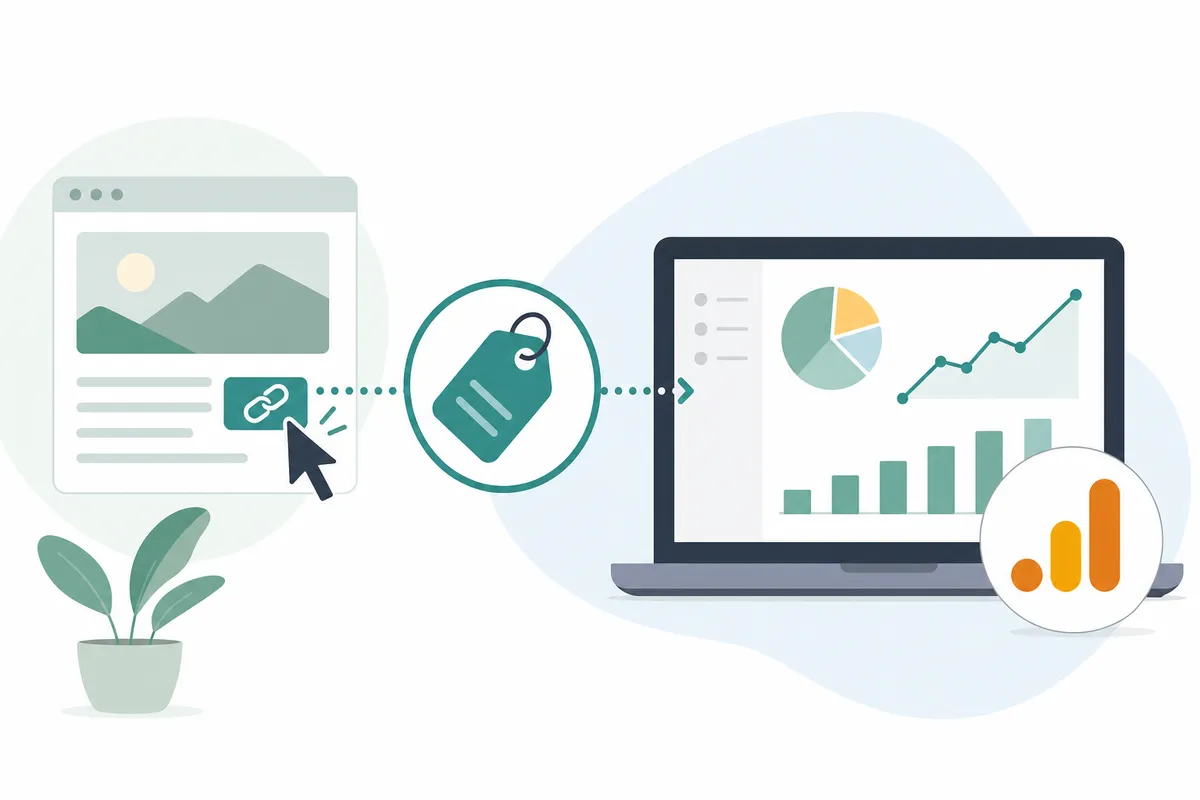
Any link you can control, guest posts, directory listings, partner pages, should carry UTM parameters (utm_source, utm_medium, utm_campaign). A tagged link shows up under its own source/medium combination instead of bare "referral," which means you can measure it even if the destination's HTML referrer gets stripped somewhere in the chain.
Don't tag links you don't control. A link another site adds organically, with no coordination from you, should stay untagged so it shows naturally as referral traffic in your report.
Remove fake and spam referrals from the report
Not every row in your referral report is a genuine backlink. Several categories need to be filtered out before you draw conclusions.
Self-referrals, and how to stop them
Self-referral traffic looks like a session that came from your own domain. It usually comes from one of three causes: a landing page missing the GA4 tag, a cross-subdomain session GA4 failed to stitch together, or incorrect cross-domain tagging on a checkout or registration flow. Each one inflates your session count and misattributes real visits as "backlinks" that were never links at all.
Third-party payment processors
When a customer is redirected to a payment processor and back, GA4 can log the return trip as a new referral session. That's not a backlink, and leaving it in your report will make a checkout provider look like one of your top referring domains.
Spam and ghost referral traffic
Referrer spam is traffic sent by bots to your GA4 property purely to get you to visit the spammer's URL, sometimes carrying an affiliate link that pays out if you click. Some site owners report bot or fake traffic accounting for as much as 90% of their referral volume in a given month, which is a reminder to treat unfamiliar domains with suspicion before acting on them.
| Metric | Spam signal | Likely cause | What to do |
|---|---|---|---|
| Bounce rate | At or near 100% | Bot traffic, never a real visit | Exclude the domain |
| Average session duration | 00:00:00 | No real human behavior | Exclude the domain |
| New sessions | At or near 100% | Ghost traffic with no return visitors | Exclude the domain |
| Domain name | Random alphanumeric string | Automated spam network | Exclude the domain |
| Key events | Always zero, high volume | Fake traffic, no purchase intent | Exclude the domain |
How to add unwanted referrals in GA4
Go to Admin, then Data Streams, and select your web stream. Open the Google tag, click Configure tag settings, then Show all, then List unwanted referrals. Add each domain you want excluded. You can match by Contains, Equals, Begins with, Ends with, or Regex; keep it simple unless you're confident with regular expressions, since one wrong pattern can silently exclude legitimate traffic too.
Why GA4 shows no backlinks, or far fewer than expected
A clean referral report is not always proof you have no backlinks. Several things can hide a real link from GA4 entirely.
| Reason | Why it happens | Fix |
|---|---|---|
| Nobody clicked the link | GA4 only logs traffic, not discovery | Check Search Console's Links report instead |
| The tag didn't fire | Consent banner blocked tracking, or the tag is missing | Check Tag Assistant on the landing page |
| The referrer got stripped | Browser's strict-origin-when-cross-origin policy | Rely on domain-level data, not full URLs |
| Date range too short | Referral traffic is spiky | Pull 90 days or more |
| It's classed as a different channel | A tagged link with its own UTM overrides "referral" | Check Session source / medium, not just the channel group |
| The visitor used an AI assistant | A chat answer cited you with no classic HTML referrer | Check server logs or a dedicated AI-traffic report |
That last row is increasingly common. As more people research through AI assistants instead of clicking a traditional search result, some citations never generate the kind of referrer GA4 was built to read, a trend covered in more depth in the role of AI search engines in modern SEO: how to stay visible in 2026.
Nofollow, sponsored or UGC: what neither tool will tell you
Neither GA4 nor Search Console labels a link by its rel attribute. A link can be nofollow, sponsored, or user-generated-content, and both reports will show it exactly the same way as a fully followed editorial link.
To check, view the source code of the linking page and search for rel="nofollow", rel="sponsored", or rel="ugc" near the anchor tag, or run the URL through a dedicated link checker tool built for that purpose. This matters because a page full of nofollow links can still send you real, engaged visitors in GA4, while contributing little to how search engines weigh your site.
Turn referral data into link-building decisions
Once your report is clean, use it to decide where to spend outreach time next, instead of just admiring the numbers.
| What you see in GA4 | What it usually means | Next action |
|---|---|---|
| High sessions, high engagement, one domain | The link and your content are a genuine match | Pitch the same site for a second, deeper link |
| High sessions, near-zero engagement | Topic mismatch between donor site and your page | Update the anchor text or landing page relevance |
| A referral with strong key events | This is your highest-value backlink type | Study the donor site's audience and find more like it |
| Several referrals, same content type | A pattern worth repeating | Produce more of that content format |
| No referral traffic from known backlinks | The link exists but nobody is clicking | Reposition the link or request better placement |
Visual content tends to show up disproportionately in that third row. An asset built to be shared and embedded, like a data chart or an original diagram, often earns links a plain article never will; see infographic for SEO: how to turn visuals into backlinks for the format. Once you know what's working, scale it with a repeatable process, outlined in how to build backlinks for explosive SEO growth: 5 steps.
Build a monthly habit to check backlinks in Google Analytics and Search Console
A single check tells you almost nothing. A monthly habit tells you whether your link profile is growing, flat, or quietly decaying.
| Frequency | Task | Where to do it | Time needed |
|---|---|---|---|
| Monthly | Pull the 90-day referral report | GA4, Traffic acquisition | 10 minutes |
| Monthly | Export Top linking sites and Top linked pages | Google Search Console | 10 minutes |
| Monthly | Cross-check both exports for matches and gaps | Spreadsheet | 15 minutes |
| Monthly | Update the unwanted referrals list | GA4, Data Streams | 5 minutes |
| Quarterly | Check a competitor's backlinks for new opportunities | Bing Webmaster Tools | 20 minutes |
Bookmark this walkthrough on how to check backlinks in Google Analytics (and what it misses) so the next review takes ten minutes instead of an hour of relearning the menu paths.
Tie the monthly check to your broader content calendar rather than running it in isolation. A link-building habit works best alongside a documented plan, like the one in how to plan content marketing in 6 steps (with a real example), and a local angle matters too if your links need to come from businesses and publications near you, covered in how to get on the first page of Google in your city without ads.
Can you find all your backlinks in Google Analytics? The honest answer
No single free tool gives you a complete list. GA4 shows clicked links only. Search Console shows a sample of what Google has indexed, capped at 100,000 exported rows and grouped by canonical URL. Bing Webmaster Tools adds a competitor view from a different index entirely. Each one is honest about covering only part of the picture.
If your link profile is small, GA4 plus Search Console is genuinely enough. If you're actively building links at scale, or benchmarking against competitors with hundreds of referring domains, a paid tool with a larger, continuously-updated index becomes worth the cost, mainly for completeness and historical tracking rather than for anything GA4 is doing wrong. And if the number of links matters more to you than where they're pointing, read how many backlinks do I need to rank? The real number before you chase volume for its own sake.
FAQs
Can Google Analytics show me a full list of my backlinks?
No. GA4 only shows referral traffic, meaning links someone actually clicked. For a fuller (though still sampled) list of links Google has found, use the Links report in Google Search Console.
Why does GA4 show fewer referrals than I expect?
Common causes include a short date range, a missing or blocked GA4 tag on the landing page, a browser referrer policy that strips the full URL, or a link that nobody has clicked yet even though it exists.
Does Google Search Console show every backlink to my site?
No. Google states the Links report is a sample, not a comprehensive list. It also groups links by canonical URL and never indicates whether a link is nofollow.
Can I check a competitor's backlinks for free?
Yes. Bing Webmaster Tools lists backlinks for any domain with just a free account, no verification required. Ahrefs and Semrush also offer limited free backlink checks on competitor domains.
Is the Google link: search operator still a reliable way to find backlinks?
No. Google's John Mueller advised against relying on the link: operator back in January 2017, and it hasn't been dependable since. Use Search Console's Links report or a search for unlinked brand mentions instead.
Run your first 90-day backlink check this week
Open your GA4 property, switch Traffic acquisition to Session source / medium, and search for "referral." That ten-minute pull shows you how to check backlinks in Google Analytics without guessing, and pairing it with your Search Console Links report closes most of the gap between the two. If you want a second set of eyes on what your link profile is actually doing for your rankings, talk to the team and walk through a sample report built the same way.
Sources
About the author
SearchBlueprint researched, wrote and scored this article with the content pipeline our customers run on their own sites. The score in the byline is what our content engine gave this page before it published. Nothing here is reviewed by hand, which is the point: it is the product's output, published where anyone can check it.