What Is a CMS? The Content Management System Explained
By Toy Wen Da, Co-Founder · Updated · 16 min read · scored 98/100
What is CMS content management system software, exactly? It lets you create, edit, and publish web pages without writing code, keeping the content you manage separate from the design and server infrastructure underneath. Log into WordPress, Shopify, or Wix to add a post, and you're using one.

This matters more than it sounds. The platform you choose decides how fast your pages load, how easily you can edit a title tag, and how much it costs to fix a problem later. Get it wrong and you'll spend years working around it.
What Is a CMS, Exactly?
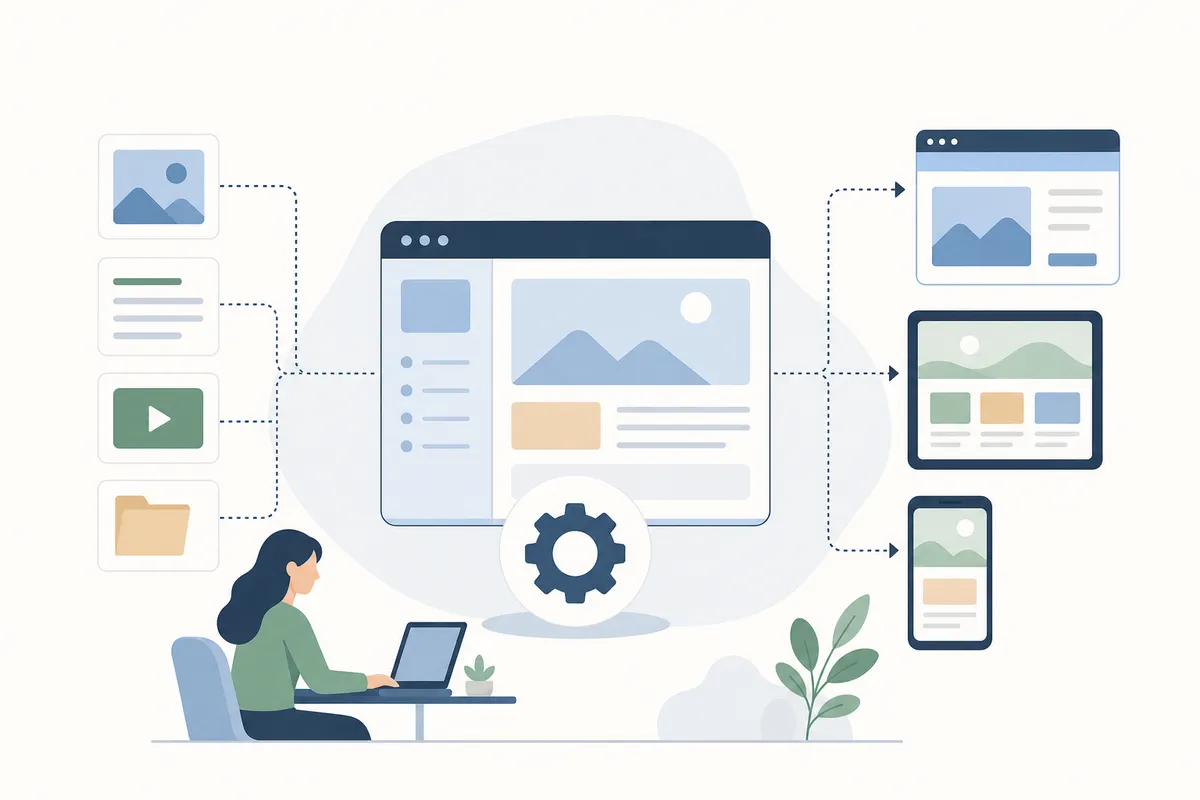
A content management system is the software layer between you and your website's code. Instead of editing raw HTML files on a server, you work inside an editor, type a headline, drag in an image, hit publish. The CMS handles the rest: storing the content, formatting it to match your site's design, and serving it to anyone who visits.
Before a CMS existed, updating a site meant downloading files from a server, editing the HTML by hand, checking you hadn't broken a link, and uploading everything back. That's slow, and it's risky if you're not a developer. A CMS removes that step entirely.
HubSpot estimates that more than 80 million websites already run on some form of CMS. That scale exists because almost no business wants to hire a developer every time it needs to change a sentence on its homepage.
A CMS typically gives you:
- A visual or text editor for writing and formatting content
- A media library for images, videos, and documents
- Templates that control layout and design
- User accounts with different permission levels
- Plugins or extensions that add features without custom code
How a CMS Works: CMA and CDA Explained
Every content management system is built from two connected parts. Understanding them makes the rest of this article click into place.
The Content Management Application (CMA)
The CMA is the part you actually touch. It's the dashboard where you log in, open the editor, and write a page. When you bold a word, insert a link, or upload a photo, you're using the CMA. It hides the underlying code so you never have to see it.
This is also where you manage settings that don't look like "writing", changing a URL, installing a plugin, or adjusting a permalink structure. All of it happens through a clickable interface instead of a text editor full of code.
The Content Delivery Application (CDA)
The CDA works behind the scenes. Once you hit publish, it takes what you entered into the CMA, assembles the final page, and pushes it to your live site for visitors to see. It also stores your content in a database so nothing is lost and pages load quickly on request.
You never interact with the CDA directly, you just notice the result. A fast, clean CDA means your pages load quickly. A poorly built one means visitors wait, and search engines notice the delay too.
Types of CMS Platforms
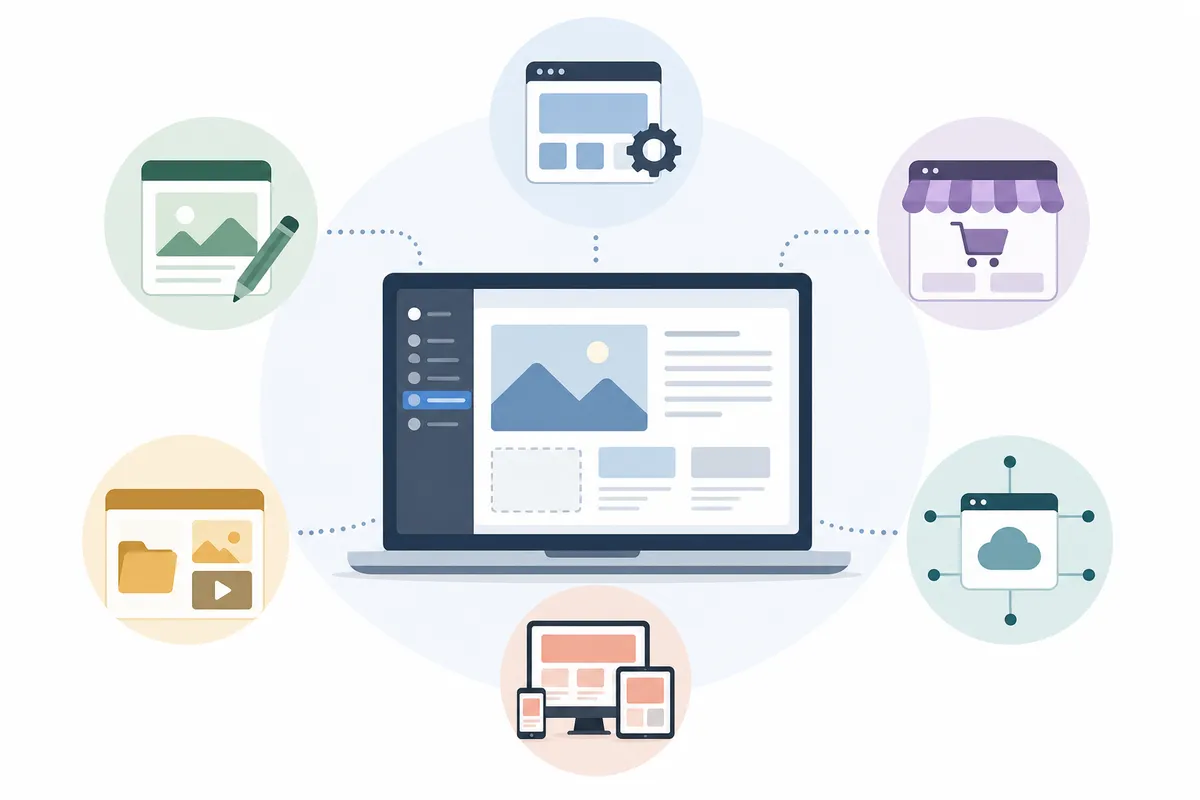
Not every CMS is built the same way, and the differences affect both your budget and how much control you have. Broadly, platforms fall into three categories, plus a newer architecture worth knowing about.
| Type | How It Works | Who It's For | Typical Costs |
|---|---|---|---|
| Open source | Source code is public; anyone can modify it | Businesses with some technical support, or a developer on call | Free software, but you often pay for hosting, technical setup, custom templates, plugins, and staff training |
| Proprietary | Built and owned by one company for your specific site | Businesses that want a custom build with vendor support | License fees, plus monthly or annual charges for updates, support, and customization |
| SaaS (software as a service) | Hosted entirely by the provider; you log in and use it | Businesses that want everything, hosting, updates, support, in one subscription | Monthly or annual subscription, usually scaled by storage, data transfer, or features |
| Headless CMS | Content is managed separately from how it's displayed, delivered via an API | Teams pushing the same content to a website, app, and other channels | Varies widely; often priced by usage or seats, with extra developer time needed to build the front end |
A few things worth knowing before you assume "free" means "cheapest." Open source software costs nothing to download, but the hidden costs, hosting, security patches, a developer for anything custom, add up fast if you don't have in-house technical help. A SaaS platform folds most of that into one subscription, which is why it often looks more expensive up front but can be cheaper overall for a small team.
If you're weighing two specific platforms against each other, this breakdown of what WordPress vs. Squarespace really costs you walks through the line items most comparisons skip, like plugin costs and migration fees.
A Worked Example: What Three CMS Platforms Actually Cost Over Three Years
Comparison tables show categories, not dollars. Here's a worked example using a small business with a 15-page site, a blog, and a 50-product online store, the kind of setup that makes people second-guess the "free" label on open source software.
Self-hosted WordPress + WooCommerce: a developer-friendly host runs $25–$40/month ($900–$1,440 over three years), a premium theme is a one-time $60–$90, and the WooCommerce plugins needed for inventory, payments, and SEO (Yoast or Rank Math, a backup plugin, a security plugin) typically add $200–$400/year, or $600–$1,200 over three years. Add a freelancer for the initial setup and occasional fixes, realistically $500–$1,500 over three years for a non-technical owner. Total: roughly $2,060–$4,230 over three years, excluding payment processing fees, which run 2.9% + $0.30 per transaction through most WooCommerce gateways.
Shopify: the Basic plan is $39/month ($1,404 over three years), stepping up to $105/month ($3,780 over three years) on the Grow plan most stores migrate to once they need better reporting and lower transaction fees. Apps for SEO, reviews, and email typically add $30–$80/month ($1,080–$2,880 over three years). There's no separate hosting or security plugin cost, since that's bundled in. Total: roughly $2,480–$6,660 over three years, plus Shopify's own payment processing (2.9% + $0.30, waived if you use Shopify Payments exclusively).
Squarespace: the Business plan runs $33/month ($1,188 over three years) and the Commerce plan $36/month ($1,296 over three years), both billed annually. Extensions are far more limited than WordPress or Shopify's app stores, which keeps add-on costs low, usually under $300 over three years, but also means some SEO and automation tasks that are a plugin install elsewhere require a workaround or a developer.
The pattern holds across most comparisons like this: open source looks cheapest on the license line and often ends up mid-pack once setup and maintenance are counted, SaaS platforms trade a higher subscription for fewer surprise costs, and the "right" choice depends on whether you have in-house technical help or you're paying for every hour of it.
Popular CMS Examples You'll Run Into
Most businesses end up choosing from a short list of well-known platforms. Each one leans toward a different type of site.
| Platform | Type | Best For | SEO Strengths |
|---|---|---|---|
| WordPress | Open source | Blogs, small business sites, large enterprise sites | Huge plugin library, full control over titles/meta/URLs, massive community support |
| Shopify | SaaS | Ecommerce stores | Built-in product SEO fields, apps for schema and sitemaps |
| Wix | SaaS | Small business and portfolio sites | Drag-and-drop editor with growing native SEO controls |
| Squarespace | SaaS | Design-forward small sites | Clean templates, simpler SEO toolset than WordPress |
| Webflow | SaaS/hybrid | Designers who want visual control with code-level output | Strong technical SEO once configured, but a steeper learning curve |
| Ghost | Open source | Writers and publishers who want a fast, minimal editor | Lightweight pages, clean markup, less plugin sprawl to slow things down |
| Drupal / Joomla | Open source | Complex, highly customized sites | Deep flexibility, but needs real development skill to use well |
WordPress remains the most widely used of the group, and it's commonly cited as the default pick for sites that treat SEO as a priority, it's flexible enough to run a simple blog or a large enterprise site, and large publishers have relied on it for years. If you land on it, our WordPress SEO settings guide walks through the defaults worth changing before you publish anything.
Worth noting: WordPress.com (the hosted version) and self-hosted WordPress.org are not the same product. They share an editor but differ in plugin access, custom code, and hosting control. If you're on the hosted version, WordPress.com SEO with verified publishing covers the settings that work differently there.
If your needs are genuinely light, a handful of static pages, no blog, no ecommerce, a full CMS might be overkill. Google Sites explained: what it's actually good for is worth a look before you commit to something heavier than you need.
Writers who want a fast, distraction-free publishing tool without a plugin-heavy setup often land on Ghost instead. Our Ghost SEO guide with verified publishing covers the handful of settings that still need checking even on a minimal platform.
CMS Security and Uptime: The Caveats the Comparison Charts Leave Out

Every CMS comparison chart lists "security" as a checkbox. In practice, the risk profile is different enough between platforms that it's worth spelling out before you commit.
Open source platforms carry more of the burden on you. Security scanners like Sucuri and Wordfence have consistently reported, in their annual threat reports, that the large majority of hacked WordPress sites were compromised through an outdated plugin or theme, not the WordPress core itself, Wordfence's yearly findings have flagged outdated plugins as the single largest attack vector for several years running. That's not an argument against WordPress; it's an argument for turning on automatic updates and removing plugins you've stopped using, which most site owners never get around to.
SaaS platforms shift that burden to the vendor. Shopify, Squarespace, and Wix patch their own infrastructure, handle SSL certificates automatically, and aren't exposed to the plugin-stacking problem the same way, since their "apps" run in a more sandboxed environment. The tradeoff is that you're relying entirely on the vendor's uptime and incident response; if a major provider has an outage during a peak shopping weekend, as several have in past years, there's nothing on your end to fix it faster.
Page speed has a similar split. The HTTP Archive's Core Web Vitals technology report, which tracks performance across millions of sites by the platform that built them, has repeatedly found that sites built on page-builder-heavy CMS setups (including some WordPress themes loaded with visual builders) pass Google's Core Web Vitals thresholds less often than lighter, template-based platforms. Google's own research, published through Think with Google, found that 53% of mobile visits are abandoned if a page takes longer than three seconds to load, which makes CMS-driven page bloat a ranking problem, not just a visitor-experience one.
None of this means one category is "more secure" than another in absolute terms. It means the question to ask during a CMS evaluation isn't just "does it support SSL," but "who is responsible for patching this, and what's their track record."
Why Businesses Use a CMS

The appeal isn't just "no coding." A good CMS changes how a team works, not just how a page gets built.
No Coding Required
You don't need to know HTML, CSS, or JavaScript to publish a page. Most platforms let you add custom code later if you want finer control, but it's optional, not required, to get a site live.
Multiple People Can Work on the Site at Once
A CMS lets a writer draft a post, an editor review it, and a developer adjust the template, all without stepping on each other's work. User roles and permissions keep each person limited to what they should be touching. A shared workflow also helps you streamline your content creation workflow for SEO success, since nobody is emailing files back and forth.
Built-In SEO Tools
Most CMS platforms include at least basic SEO fields: meta titles, meta descriptions, alt text, and sometimes a built-in XML sitemap. Plugins and apps extend that further, automating things like internal linking suggestions or schema markup. A good chunk of that routine work can now be automated outright, see content automation for SEO: what to automate (and what to keep human) for where that line should sit.
Templates That Save Design Time
Predesigned, customizable templates mean you're not starting from a blank page. Redesigns are faster too, since you're swapping a theme rather than rebuilding the site from scratch.
Is a CMS Good for SEO? What to Check Before You Commit
Yes, a CMS is generally good for SEO, but only if it actually gives you control over the handful of things that matter. The platform itself doesn't rank; what you can edit inside it does.
On-Page Controls: Titles, Meta Tags, and Headers
You need to be able to edit, without touching code:
- Page titles and header tags
- Meta title and meta description
- Image alt text and file names
- URL slugs
Most platforms handle page titles and headers without friction. Meta descriptions are the common sticking point, some CMS platforms bury that field or require a plugin to expose it. Check this before you commit to a platform, not after.
URL Structure and Site Architecture
Short, descriptive URLs with your target keyword in them are easier for both readers and search engines to parse. Some platforms force a category subfolder into every URL whether you want it or not, which adds unnecessary length. Look for a CMS that lets you fully control the URL, not just the final slug.
Site structure matters just as much. A CMS with flexible categories, tags, and menu controls makes it easier for search engines to crawl related pages and understand how they connect. Clear navigation and breadcrumbs help both crawlers and visitors find their way around.
Page Speed, Security, and Plugins
Page speed is a ranking factor, and it's also where many CMS setups quietly fail, usually from too many plugins, unoptimized images, or no caching in place. Look for a platform (or a caching plugin on top of it) that handles compression and caching without extra work on your part.
Security matters too, mostly because a hacked or slowed-down site tanks both rankings and user trust. At minimum, confirm the platform supports SSL by default, offers two-factor authentication, and lets you set access levels by user role.
Every platform has its own list of settings worth adjusting out of the box. Our CMS SEO guides collection walks through the specific changes to make, in order, for WordPress, Shopify, Webflow, and several others.
How to Choose the Right CMS for Your Business
There's no single "best" CMS, only the one that fits your content volume, technical comfort, and growth plans. Use this as a quick filter.
| If You Need... | Look For... | Platforms Worth Considering |
|---|---|---|
| A simple blog or small business site | Easy editing, built-in templates, low setup cost | WordPress, Squarespace, Wix |
| An online store | Native product/inventory management, payment integrations | Shopify, WordPress with WooCommerce |
| Heavy design customization | Full visual control, code-level export | Webflow |
| Minimal, fast publishing | Clean editor, lightweight pages | Ghost |
| Multi-channel content (web, app, more) | API-first delivery, decoupled front end | A headless CMS |
| Enterprise-scale complexity | Deep permissions, custom data structures | Drupal, a proprietary enterprise platform |
A few questions worth asking before you sign up for anything:
- Can I edit meta titles and descriptions without a developer?
- Does it support the plugins or apps I'll actually need (SEO, forms, analytics)?
- What happens to my content if I want to switch platforms later?
- Is there an active community or support team I can turn to when something breaks?
- What's the realistic total cost, hosting, plugins, templates, and support, not just the sticker price?
Once you've settled on a platform, the real work is staying consistent with it. Build a content calendar for SEO growth in 5 steps is a practical next step for keeping publishing on schedule after the platform decision is made.
How to Migrate Content to a New CMS Without Losing Your Rankings
Switching platforms is where most of the SEO damage from a CMS decision actually happens, not from the platform you picked, but from a rushed move off the old one. A methodical migration takes longer up front and avoids most of the traffic drop that typically follows a careless one.
- Crawl and export your current site before touching anything. Run a full crawl (Screaming Frog or a similar crawler works) to capture every live URL, title tag, meta description, and internal link. This is your map for step 4, and it's the thing people skip when they're in a hurry.
- Build the new site on a staging URL or subdomain, not live. Recreate your templates, categories, and navigation structure before importing a single page of content.
- Migrate content in batches, not all at once, starting with your highest-traffic pages. Check each batch against the live version, formatting, images, internal links, before moving to the next.
- Map every old URL to its new equivalent and set up 301 redirects. This is the step that protects rankings. A page that moves without a redirect doesn't just lose its own ranking; it drops the backlinks pointing to it, which search engines treat as a dead link until you fix it.
- Re-create your XML sitemap on the new platform and resubmit it in Google Search Console, alongside the redirect map so Google can recrawl efficiently rather than rediscovering pages one by one.
- Leave both the redirect map and the old hosting active for at least 90 days after launch. Search engines reprocess a site gradually, not instantly, and a 301 that breaks because you cancelled hosting early undoes the work from step 4.
- Monitor Search Console's coverage and performance reports weekly for the first month. A spike in 404s or a sudden drop in indexed pages is your signal that a batch from step 3 didn't migrate cleanly.
The most common mistake isn't technical, it's sequencing: businesses migrate the content first and figure out redirects after launch, by which point search engines have already started re-crawling broken URLs. Doing step 4 before step 6 is non-negotiable if rankings matter to you.
Do You Actually Need a CMS?
Not every website needs one. If you're updating a handful of static pages once every few months, a CMS might be more overhead than it's worth, a simple site builder or a few hand-coded pages could do the job.
A CMS earns its place when your site changes often: an online store with a rotating catalog, a company site with offers that update regularly, a blog, or any site with enough content that manual edits become a time sink. If you're touching the site weekly rather than yearly, the setup cost pays for itself quickly.
It's also worth separating the platform from the process. A CMS makes publishing easier, but it doesn't write anything for you. Mastering the content creation process for lasting SEO success matters just as much as which software you picked, a great CMS with no content strategy behind it still produces an empty blog.
If you're still working out what a CMS actually is and how its two halves, the editor and the delivery engine, fit together, it's worth revisiting that before comparing platforms side by side, since the differences between options only make sense once that foundation is clear.
FAQs
What does CMS stand for?
CMS stands for content management system. It's software that lets you create, edit, and publish website content through a dashboard, without writing HTML, CSS, or JavaScript by hand.
Is WordPress a CMS?
Yes. WordPress is the most widely used content management system, powering both small blogs and large enterprise sites. It's open source, which means the core software is free, though hosting, themes, and plugins typically cost money.
Do I need a CMS for a small business website?
Usually, yes, if your content changes more than a few times a year, new offers, blog posts, or updated hours. If your site is just a handful of pages that rarely change, a simpler site builder may be enough.
What's the difference between a CMS and a website builder?
A website builder (like a basic drag-and-drop tool) is usually simpler but more limited. A CMS tends to offer more plugins, more customization, and more control over SEO settings, at the cost of a slightly steeper learning curve.
Can a CMS hurt my SEO?
It can, if it restricts access to meta tags, forces awkward URL structures, or loads slowly by default. The platform itself isn't the problem, a lack of control over the details that affect rankings is.
Turn Your CMS Into an SEO Asset
Picking a content management system is only step one. The settings you change inside it, titles, URLs, page speed, structure, are what actually move rankings. Most platforms get this partly right out of the box and need a few deliberate fixes to get the rest.
Now that you know what is CMS content management system and how it shapes rankings, if you want to see exactly where your current CMS setup is helping or hurting your search visibility, talk to the team and get a sample report that shows what's working and what to fix first.
About the author
SearchBlueprint researched, wrote and scored this article with the content pipeline our customers run on their own sites. The score in the byline is what our content engine gave this page before it published. Nothing here is reviewed by hand, which is the point: it is the product's output, published where anyone can check it.