Yoast SEO WooCommerce: The Setup Checklist for Product Pages
By Toy Wen Da, Co-Founder · Updated · 7 min read · scored 94/100
Setting up Yoast SEO for WooCommerce means connecting the Yoast SEO plugin, or its WooCommerce add-on, to your product and category pages so Google can read prices, stock, reviews and clean titles. Start by opening Yoast SEO → WooCommerce SEO in your WordPress dashboard and checking that the schema and sitemap settings match your catalog.

If you want to see which product and shop pages are missing titles, schema or alt text before you click through any settings, SearchBlueprint's technical SEO audit for WordPress flags those gaps across the whole site instead of one page at a time. It tells you where the Yoast WooCommerce SEO settings need attention first.
What Yoast SEO WooCommerce adds
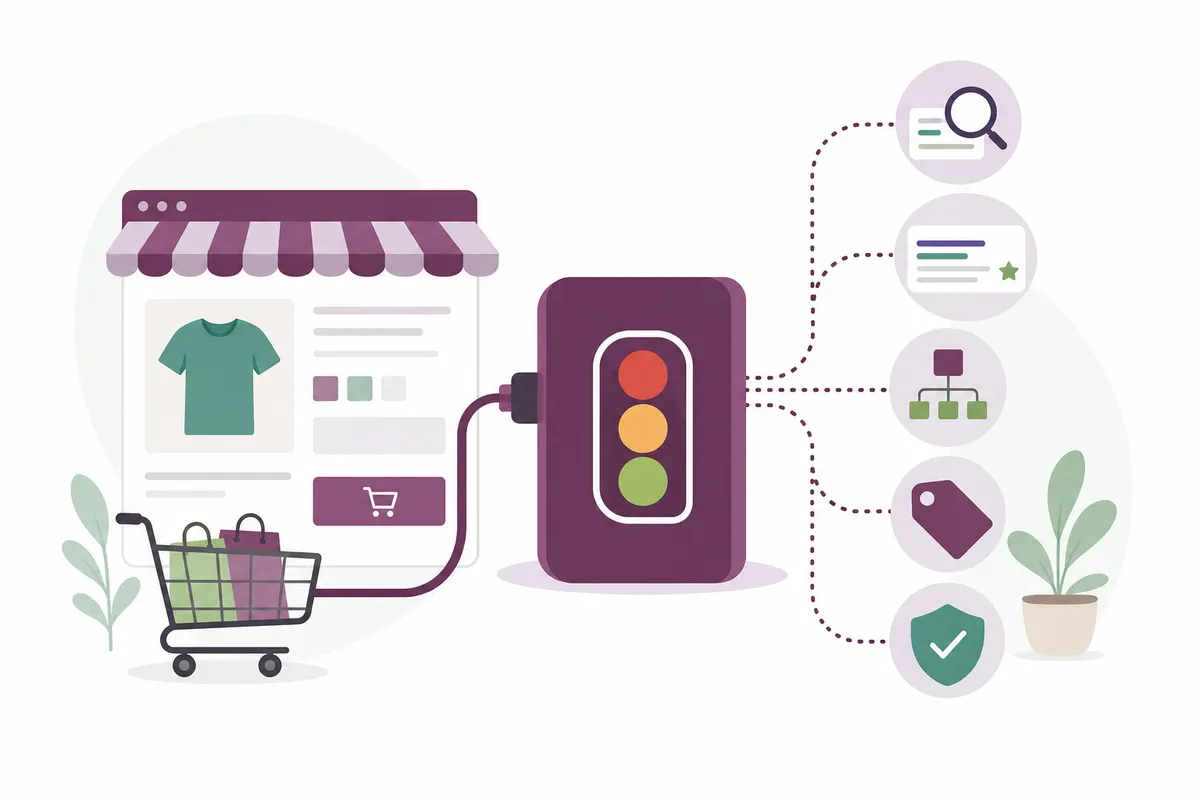
The free Yoast SEO plugin has been around since 2008 and now runs on more than 10 million websites, according to its own WordPress.org listing. It gives any post or page a title, a meta description and a basic readability check.
Yoast WooCommerce SEO is a separate paid extension built on top of it. It needs Yoast SEO or Yoast SEO Premium installed first, but Premium comes inside the WooCommerce SEO bundle at no extra cost, so you aren't buying two things.
What the add-on changes on product pages
Once it's active, the add-on gives you:
- Structured data for price, stock status and review ratings, following the vocabulary defined by Schema.org, so Google can show product results with extra detail.
- A WooCommerce product sitemap that skips cart, checkout and account pages.
- Content checks written for store copy, including short-description length and image alt text, rather than blog-style readability alone.
- AI-drafted titles and meta descriptions for products and categories, which you review before anything publishes.
- AI-generated image alt text, built from your product data, your focus keyphrase and the photo itself. You can generate it next to the alt text check or in bulk across the catalog, preview and edit every suggestion, and your existing alt text stays untouched unless you choose to replace it.
- Canonical controls, so a product or category reached through filters or URL parameters points search engines at one definitive version instead of competing with itself.
- Templates that apply SEO settings across the whole catalog, plus real-time SEO and readability feedback while you edit products and categories inside your store.
How to set up Yoast SEO for WooCommerce
Install and activate the plugins
Install Yoast SEO from the WordPress plugin directory, then activate Yoast WooCommerce SEO (or Yoast SEO AI+, which includes it) as a second plugin. Both must be active before the WooCommerce settings appear.
Configure the WooCommerce SEO settings
In your WordPress dashboard, go to Yoast SEO, then WooCommerce SEO. The screen controls three things: the Schema OpenGraph additions, breadcrumb behavior and the order of the admin meta boxes.
Under Schema OpenGraph additions you can map WooCommerce product attributes (manufacturer, brand, color, pattern, material and size) into structured data. They only output correctly if you first create matching attributes in WooCommerce under Products → Attributes.
If your theme or Yoast already shows breadcrumbs, tick Replace WooCommerce Breadcrumbs. Visitors and search engines then see one consistent trail instead of two competing ones.
Set product identifiers and add alt text
Open any product, click the Yoast SEO tab inside the Product data meta box, and add identifiers such as GTIN, ISBN or MPN if your products have them. Yoast uses these in its schema and Open Graph output.
The same meta box flags missing alt text on featured, gallery and variation images. Editors also lose track of this box more often than any other part of the plugin, so if it vanishes, see where the Yoast SEO meta box lives and how to fix it when it disappears for the usual causes.
Fix the metabox order and sitemap
Still on the WooCommerce SEO screen, tick Move WooCommerce up under Admin if you want the product-data box above the Yoast SEO box while editing. It's purely a workflow preference.
The XML sitemap needs no manual work. Yoast WooCommerce SEO removes Cart, My Account and Checkout pages and pulls in Product Gallery images, so crawl budget goes to pages that sell something. It also keeps low-value filter and parameter pages out of the sitemap, which leaves the file focused on your key products.
One caveat: aggregateRating schema only appears once a product has at least one real review. No review means no rating stars in search, and no setting fakes it.
Keep the catalog tidy as it grows
Some jobs come back every time the store changes. When you add sizes, colors or bundles to a product, check that brand, color and material stay filled in so Google and shoppers see the right version. When you retire old URLs, set up redirects so the links pointing at them still land somewhere useful. For seasonal campaigns, the AI title and description tools let you draft copy for a whole set of products and categories, preview how each listing will look and publish on schedule.
Free Yoast SEO vs. Yoast WooCommerce SEO
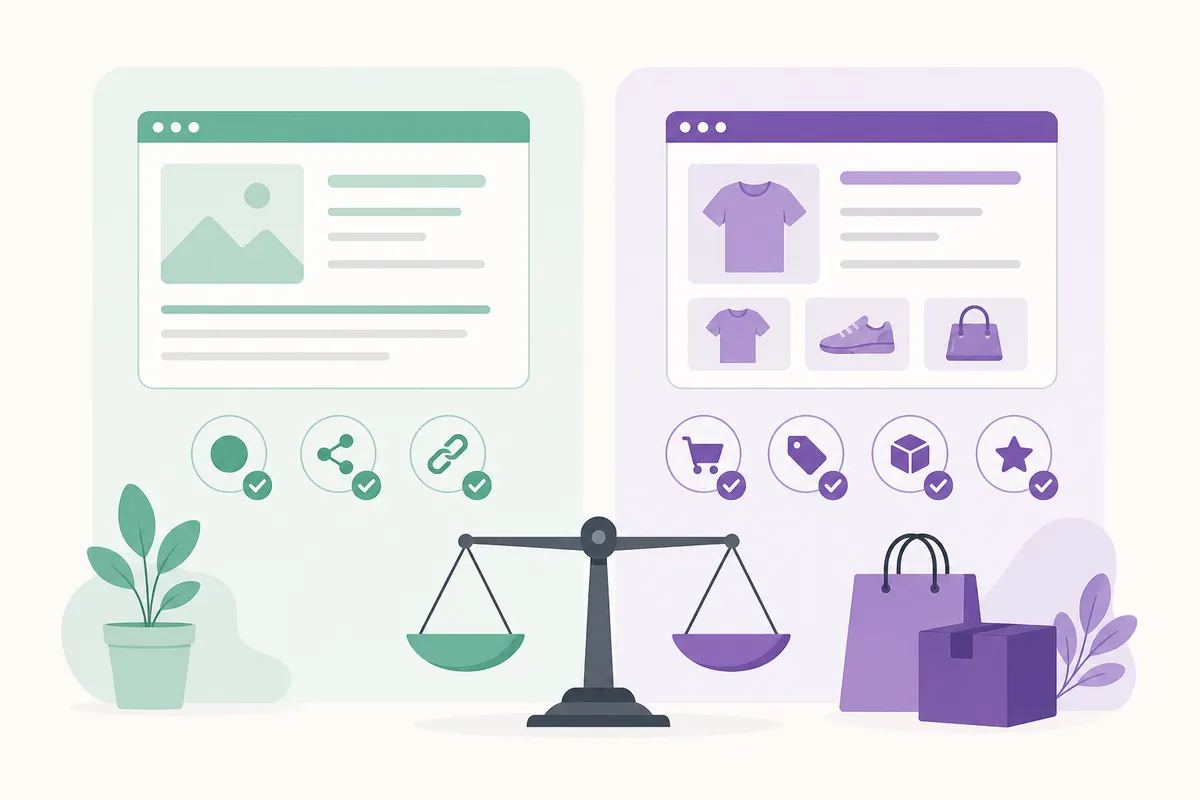
| Feature | Yoast SEO (Free) | Yoast SEO Premium | Yoast WooCommerce SEO |
|---|---|---|---|
| Price | Free | $118.80/year (ex. VAT) | $178.80/year (ex. VAT) |
| Product price/stock/review schema | Not included | Not included | Included |
| WooCommerce-specific XML sitemap | Not included | Not included | Included (excludes cart/checkout) |
| AI-generated product titles & descriptions | Not included | Site-wide only | Product and category level, plus bulk |
| Image alt text checks for product images | Basic | Basic | Ecommerce-specific (featured, gallery, variation) |
| Bundled extras | None | Local SEO, Video SEO, News SEO, Google Docs seat | Everything in Premium, plus all of the above |
Common mistakes when setting up Yoast SEO for WooCommerce
The most frequent error is treating product schema as automatic. Yoast only outputs brand, color and material once those exist as WooCommerce attributes. Another is writing short descriptions under 20 words. Yoast's content check treats 1 to 19 words as short and 50 or more as long, so a length between those extremes scores better for shoppers and for the plugin's readability signal.
Many owners skip the breadcrumb setting and leave two trails live at once, which confuses users and crawlers alike. Others assume the free plugin generates product results in search on its own. It doesn't; that takes the paid WooCommerce extension or an equivalent schema tool.
If you're still choosing a plugin, see how All in One SEO compares to Yoast for WordPress and how Rank Math stacks up against Yoast. Both are worth a look if product schema and bulk editing decide it for you.
When WordPress's own tools are enough, and when they aren't
| Situation | Is free Yoast SEO enough? | Why |
|---|---|---|
| Fixing one product's title and meta description | Yes | The free plugin's per-page editor handles a single fix fine. |
| Writing GTINs and rich-result schema for a 500-product catalog | No | Manual entry per product doesn't scale; bulk tools matter here. |
| Keeping cart/checkout pages out of your sitemap | Yes, with WooCommerce SEO | This is automatic once the add-on is active, no ongoing work. |
| A store selling across multiple physical locations | No | You need location-aware SEO, not just product schema, see SearchBlueprint's local SEO features for rank grids and location pages. |
| Finding every page site-wide missing schema or alt text | No | One-off checks in the product editor won't surface this at scale; a full-site audit will. |
Free Yoast SEO is enough for a small store with a stable product line and someone who checks each listing by hand. It stops being enough once you manage dozens of variants, need consistent metadata across hundreds of SKUs, or want to catch gaps without opening every product.
FAQs
Do I need WooCommerce SEO if I already have Yoast SEO Premium?
Yes. Premium alone doesn't add product schema, GTIN fields or the WooCommerce-specific sitemap. The separate Yoast WooCommerce SEO extension supplies those, and it includes Premium's features in the bundle.
Can I use Yoast WooCommerce SEO without the free Yoast SEO plugin?
No. It requires Yoast SEO or Yoast SEO Premium to be active first. The paid WooCommerce bundle includes Premium, so you aren't buying it twice.
Why isn't my product showing star ratings in Google?
Aggregate rating schema only outputs once a product has at least one review. With zero reviews there's nothing for Yoast to display, whatever your settings say.
Does Yoast WooCommerce SEO slow down my site?
The plugin generates schema and sitemap data on the fly rather than adding front-end scripts, so it shouldn't meaningfully affect page speed by itself. Site speed still depends on your hosting, images and theme.
What happens to Cart and Checkout pages in my sitemap?
Yoast WooCommerce SEO removes them automatically, along with the My Account page, and fills the space with product gallery images. You don't edit the sitemap by hand.
Get your product pages checked before you change anything else
Start with the Yoast SEO → WooCommerce SEO screen, map your product attributes, and confirm schema is outputting on a live product page. If you'd rather see which products and categories need fixing first than audit each one by hand, talk to the team and get a sample SEO report built around your own WooCommerce store.
Resources / References
Sources
About the author
SearchBlueprint researched, wrote and scored this article with the content pipeline our customers run on their own sites. The score in the byline is what our content engine gave this page before it published. Nothing here is reviewed by hand, which is the point: it is the product's output, published where anyone can check it.